Make.com Integration
Using Make.com with AnyDB
Make.com is a popular workflow platform allowing integration between various business systems and services. AnyDB support integration with Make.com to integrate AnyDB in your business workflows. You can find the AnyDB Application at here.
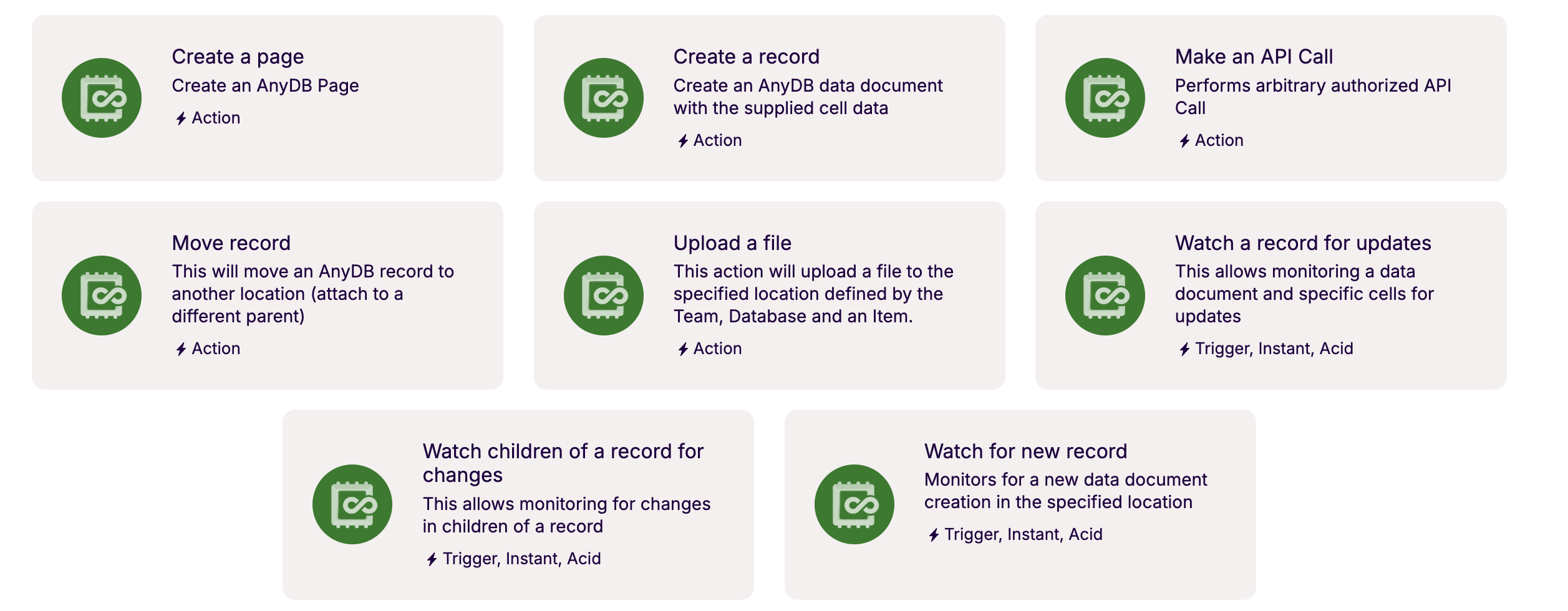
Supported functions
These are the various functions supported. More will be added as requirements arise. If you need a different behavior or a new function, please send us a support request.
| Function | Type | Description |
|---|---|---|
| Create a page | Action | This action will create a page type record with the supplied title and content. Requires the Team, Database and optional parent record |
| Create a record | Action | This action will create a record with the cell data supplied. Requires the Team, Database and optional parent record |
| Make an API Call | Action | This action is to allow arbitary API call that is authorized by the API key. This typically is not used in the scenarios |
| Move record | Action | This action will move a record from one parent to another parent. Requires the Team, Database and source record id and the target parent id |
| Upload a file | Action | This action will allow uploading a file to a parent record (such as folder). Requires the Team, Database and record id to attach as a child |
| Watch a record for updates | Trigger | Fires when a record is updated: one record, the records under a parent record, or every record of a type, optionally only when given cells change. See Choosing what fires a trigger |
| Watch children of a record for changes | Trigger | The same trigger and fields as Watch a record for updates, kept for existing scenarios. |
| Watch for new record | Trigger | Fires when a record is created under a parent record, or of a type anywhere in the database. See Choosing what fires a trigger |
Choosing what fires a trigger
The two watch triggers take the same conditions as an AnyDB workflow trigger and the Zapier app, so a scenario runs only for the records you care about. Every field you fill in must hold. At least one of Record ID, Parent Record ID or Record Type is required.
| Field | Watch for new record | Watch a record for updates | What it does |
|---|---|---|---|
| Record ID | ✓ | Watch one record. Copy the ID from the record's details panel. | |
| Record ID: also watch its children | ✓ | Only used together with Record ID: also watches that record's direct children. It is ignored when Record ID is empty. | |
| Parent Record ID | ✓ | ✓ | Watch the records directly under this record (such as files in a folder). The parent itself does not trigger the scenario. |
| Record Type | ✓ | ✓ | Only records of this type, picked from the list. The list includes your workspace types and the built-in File, Folder, Page and Link types. With no Record ID or Parent Record ID, every record of this type in the database is watched. |
| Cell IDs | ✓ | Only when one of these cells changes, for example A1,B2. Empty means any cell. |
The Make app does not take a condition Filter yet. To filter on a record's values, for example its name, add a Make filter after the trigger. The conditions above already limit which records reach it.
Files. A file is added in two steps: AnyDB creates the File record first, then writes its file cell (A1) once the upload has finished. To act on the file, for example to copy it elsewhere, use Watch a record for updates with Record Type File and Cell IDs A1. It runs once per upload, after the upload completes. Watch for new record runs on the new record, before the file can be downloaded.
Step by step: Upload files to Google Drive from AnyDB with Make walks through this example with screenshots. Copy uploaded files to Google Drive has the shared reference.
Example: every file uploaded to a folder. Use Watch a record for updates with Record ID empty, Parent Record ID set to the folder's ID, Record Type File, and Cell IDs A1.
How to get AnyDB API Key to use with Make.com ?
In order to allow AnyDB Make.com app to interact with your AnyDB account, the AnyDB Team owner or any Team member with appropriate permissions can get the API key for the team. Learn about AnyDB Teams and Workspaces here
The integration key is accessed from user Profile dialog. This API integration key will allow access to your AnyDB that the user has permissions to access by Make.com AnyDB app.
This key should be used when creating the connection object in AnyDB App in Make.com

Configuring Make.com AnyDB Application
The AnyDB Application in Make.com will typically require three pieces of information during setup. They are, AnyDB Team, AnyDB Database and AnyDB record id.
Typically, the Team and Database will be populated using the connection infroatmion. The record ID can be retrieved from the AnyDB Record right side property panel.
Creating Make.com Scenario with AnyDB application
AnyDB support various triggers and action to allow monitoring and manipulation of AnyDB data. They all require similar steps in general.
- Get API Key and create a connection object
- Get Team, Database and Record ID of the object to monitor or act
- Configure Make.com AnyDB Application
NOTE: If you need help creating scenarios, Please contact us and we can help with the workflow.
Here is an example on how to monitor for new records created in AnyDB and send an email via Gmail.
This video shows creation of a scenario that has a AnyDB webhook trigger in Make.com and send an email when triggered.
This trigger will be notified whenever a new child reacord is created on the record being monitored.