Zapier Integration
Using Zapier with AnyDB
Zapier is a popular workflow platform allowing integration between various business systems and services. AnyDB support integration with Zapier to integrate AnyDB in your business workflows. You can find the AnyDB Application at here.
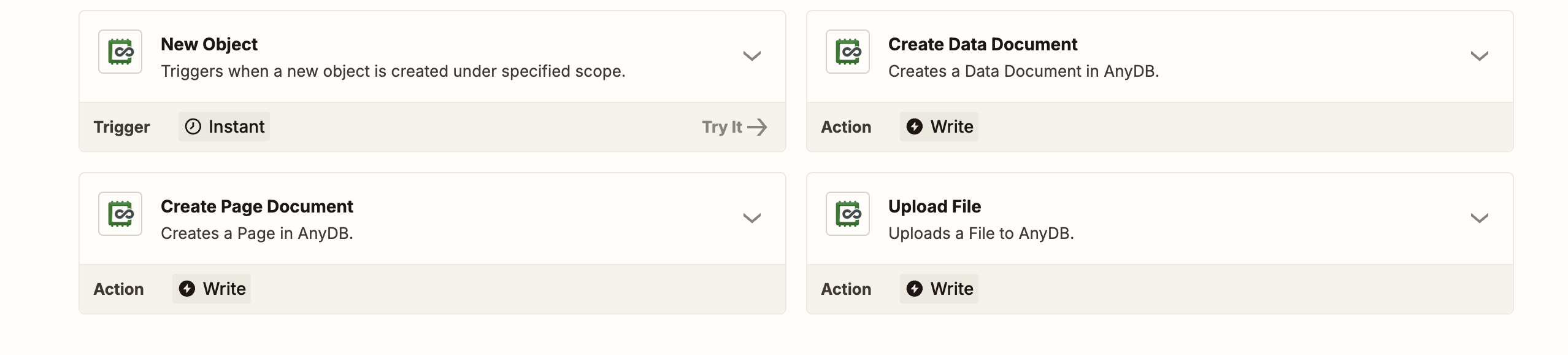
Supported functions
These are the various functions supported. More will be added as requirements arise. If you need a different behavior or a new function, please send us a support request.
| Function | Type | Description |
|---|---|---|
| Create a page | Action | This action will create a page type record with the supplied title and content. Requires the Team, Database and optional parent record |
| Create data document | Action | This action will create a record with the cell data supplied. Requires the Team, Database and optional parent record |
| Upload file | Action | This action will allow uploading a file to a parent record (such as folder). Requires the Team, Database and record id to attach as a child |
| New Record | Trigger | Fires when a record is created under a parent record, or of a type anywhere in the database, optionally narrowed by a filter. See Choosing what fires a trigger |
| Updated Record | Trigger | Fires when a record is updated: one record, the records under a parent record, or every record of a type, optionally narrowed by cells and a filter. See Choosing what fires a trigger |
Choosing what fires a trigger
The New Record and Updated Record triggers take the same conditions as an AnyDB workflow trigger, so a Zap runs only for the records you care about instead of every change in the database. Every condition you fill in must hold for the Zap to run. At least one of Record ID, Parent Record ID, Record Type or Filter is required.
| Field | New Record | Updated Record | What it does |
|---|---|---|---|
| Record ID | ✓ | Watch one record. Copy the ID from the record's details panel. | |
| Parent Record ID | ✓ | ✓ | Watch the records directly under this record (such as files in a folder). The parent record itself does not trigger the Zap, and records in sub-folders do not either. |
| Record Type | ✓ | ✓ | Only records of this type, picked from the list. The list includes your workspace types and the built-in File, Folder, Page and Link types. With no Record ID or Parent Record ID, every record of this type in the database is watched. |
| Cell IDs | ✓ | Only when one of these cells changes, for example A1,B2. Empty means any cell. | |
| Filter | ✓ | ✓ | Only when this condition is true for the record. See Filter syntax. |
| Record ID: also watch its children | ✓ | Only used together with Record ID: True also watches that record's direct children. It is ignored when Record ID is empty, so leave it at False when you use Parent Record ID or only a Record Type. (Shown as "Monitor for changes in children records" in app versions before 1.2.2.) |
Record Type, Parent Record ID on Updated Record, Filter, and the optional Record ID and Cell IDs need AnyDB Zapier app version 1.2.1 or later. Existing Zaps keep working unchanged.
Record ID or Parent Record ID?
- Record ID watches that one record. With "Record ID: also watch its children" set to True, it also watches the record's direct children.
- Parent Record ID watches only the records directly under that record, never the record itself. This is the same as a workflow trigger's Parent. For "files in this folder", use Parent Record ID.
New Record or Updated Record for files?
A file is added in two steps. AnyDB first creates the File record as a placeholder, then updates its file cell (A1) once the upload has finished. New Record fires on the placeholder, before the file can be downloaded. To act on the file itself, for example to copy it to Google Drive, use Updated Record with Cell IDs A1, which fires when the upload completes. Replacing the file in that record later fires it again.
Filter syntax
A filter is written exactly like a workflow trigger's Conditions. Refer to the record's values with these tokens:
{{context:meta.name}}: the record's name. For a file, that is the file name with its extension, for exampleForm.pdf.{{context:content.Status}}: a cell, by its field name{{context:content.A3}}: a cell, by its position
Put quotes around a token that holds text, for example '{{context:content.Status}}' == 'Approved'.
| Operators | Meaning | Example |
|---|---|---|
== != > < >= <= | compare text or numbers | {{context:content.Amount}} > 1000 |
CONTAINS STARTSWITH ENDSWITH | match part of a text | '{{context:meta.name}}' CONTAINS 'Form' |
AND OR NOT and parentheses | combine conditions | '{{context:content.Status}}' == 'Open' AND NOT ('{{context:meta.name}}' ENDSWITH '.tmp') |
Text comparisons ignore upper and lower case. A filter may only contain values, tokens and these operators; anything else is refused when you turn the Zap on.
Examples
Step by step: Upload files to Google Drive from AnyDB with Zapier walks through this example with screenshots. Copy uploaded files to Google Drive has the shared reference.
Copy every file uploaded to a folder to Google Drive. Use Updated Record, with Record ID empty, Parent Record ID set to the folder's ID, Record Type File, Cell IDs A1, and "Record ID: also watch its children" left at False (it is ignored here). Then add a Webhooks by Zapier GET step that downloads the file, and a Google Drive Upload File step.
Only files whose name contains "Form". Use the same settings, with Filter set to '{{context:meta.name}}' CONTAINS 'Form'. Use STARTSWITH 'Form' for names that begin with Form, or == 'Form.pdf' for one exact name.
Every new Invoice anywhere in the database. Use New Record, with Parent Record ID empty and Record Type Invoice.
An Issue closed under one project folder. Use Updated Record, with Parent Record ID set to the project folder's ID, Record Type Issue, Cell IDs set to the Status cell's position, and Filter '{{context:content.Status}}' == 'Closed'.
How to get AnyDB API Key to use with Zapier ?
In order to allow AnyDB Zapier app to interact with your AnyDB account, the AnyDB Team owner or any Team member with appropriate permissions can get the API key for the team. Learn about AnyDB Teams and Workspaces here
The integration key is accessed from user Profile dialog. This API integration key will allow access to your AnyDB that the user has permissions to access by Zapier AnyDB app.
This key should be used when creating the connection object in AnyDB App in zapier
Configuring AnyDB Zapier App
The AnyDB Application in Zapier will typically require three pieces of information during setup. They are, AnyDB Team, AnyDB Database and AnyDB record id.
Typically, the Team and Database will be populated using the authentication information. The record ID can be retrieved from the AnyDB Record right side property panel. See the video to learn more.