Email inbox in help desk mode
A help desk mailbox is an email inbox in which every conversation is a ticket. Each ticket gets a number such as SUP-1000, a status that moves through a pipeline you define, a priority, an owner and an owning team. The Mail screen changes from a plain list of conversations to a ticket queue with ready-made views such as Unassigned and My team's open.
Everything else works exactly as in a normal inbox: how mail is read, how threads are formed, how contacts are linked, attachments, and how replies are sent. This page covers only what help desk mode adds. Read Email inbox first for connecting the mailbox and for replying.
Normal inbox or help desk?
| Normal inbox | Help desk | |
|---|---|---|
| Conversation state | Status only: Open, Pending, Snoozed, Closed | A numbered ticket with a Ticket Status from a pipeline, Priority, Assigned Team and Company, as well as Status |
| Mail screen | A list with All, Unread and Assigned to me tabs | A ticket queue with a view list on the left |
| Customer writes again to a closed conversation | Stays closed, shown as unread | Can reopen the ticket automatically |
| Best for | A shared inbox for a small team | Support or request queues that need numbers, ownership and priorities |
You decide whether a mailbox is a help desk when you add it. You can't turn it on or off for an existing mailbox, because tickets are numbered and filed from the first email. To try both, add two channels.
Turn on help desk mode
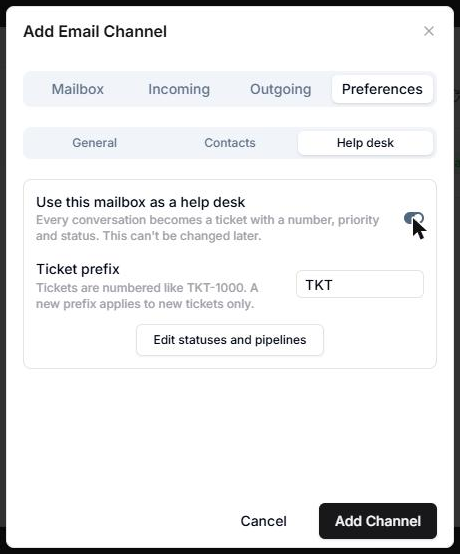
You set up a help desk mailbox like any other mailbox. Follow Connecting a mailbox, then do this on the Preferences tab of the Add Email Channel form:
-
Open the Help desk group.
-
Turn on Use this mailbox as a help desk. The explanation reads Every conversation becomes a ticket with a number, priority and status. This can't be changed later.
-
Set the Ticket prefix: 1 to 8 capital letters or digits. The default is
TKT. Tickets are numbered likeTKT-1000, and you can change the prefix later. A new prefix only applies to new tickets. -
If your team has more than one pipeline, choose the Ticket pipeline that new tickets from this mailbox start in. See Pipelines and statuses. With one pipeline, there's nothing to choose.
-
Add the channel.
When the mailbox is created, AnyDB also adds its ticket views to the workspace.
On an existing help desk mailbox, the switch is shown but locked, with the note Every conversation is a ticket. This was chosen when the mailbox was added and cannot be changed.
How tickets are created
Every new email thread in a help desk mailbox becomes a Conversation that is also a ticket:
- It gets the next Ticket Number,
PREFIX-1000for the first,PREFIX-1001for the second, and so on. Each mailbox counts separately, starting at 1000. Numbers are never reused, and they are set by AnyDB, so nobody can edit them. - It starts in the first open status of the mailbox's pipeline. With the default pipeline, that's New.
- Status is
Open. - Priority and Assigned Team start empty, and the ticket is unassigned.
- Status Entered At records when the ticket entered its current status.
Replies in the same email thread belong to the same ticket. Two emails with the same subject but no reply link are two tickets.
If you set First sync reads to a number of days when you add the mailbox, the older mail it imports becomes tickets as well, numbered in the order AnyDB reads it.
Ticket fields
These fields are added to Conversation records, on top of the standard conversation fields.
| Field | What it holds |
|---|---|
| Ticket Number | PREFIX-1000 and up. Set by AnyDB and can't be edited. |
| Pipeline | The pipeline the ticket follows. A ticket always has one, and it can't be removed. |
| Ticket Status | The ticket's current status within its pipeline. |
| Priority | Low, Medium, High or Urgent. |
| Assigned To | The teammate (or teammates) handling the ticket. |
| Assigned Team | The group responsible for the ticket. Groups only. |
| Status Entered At | When the ticket moved into its current status. |
| Company | The company of the linked Contact. It follows the contact automatically and can't be edited. |
| Status | Open, Pending, Snoozed or Closed. Follows the ticket status, see Pipelines and statuses. |
Because these are ordinary fields, you can use them in views, reports, search and workflows like any other data.
The ticket queue
Open the workspace's Communications page and select the Mail tab. For a help desk mailbox, the screen has:
- A sidebar with a mailbox picker (when the workspace has more than one mailbox), the Sync now bar, and the list of views. Each view shows how many tickets it holds.
- A ticket table for the view you chose, with the Search mail box above it. The search matches tickets by their subject and the text of their messages. If you select a ticket, it opens in a thread pane with the same reading and replying tools as a normal inbox.
The table shows Ticket Number, Subject, Priority, Ticket Status, Related Record (the contact), Company, Assigned To, Assigned Team and Status Entered At, newest tickets first. If a view has no tickets, it shows No tickets here.
Views
AnyDB adds these views for each help desk mailbox. Each only shows tickets from its own mailbox.
| View | Shows |
|---|---|
| Unassigned | Tickets that nobody is assigned to, and that aren't closed. |
| Assigned to me | Tickets assigned to you, or to a group you belong to. |
| My team's unassigned | Tickets owned by a group you belong to, that nobody is assigned to yet, and that aren't closed. |
| My team's open | Tickets owned by a group you belong to that aren't closed. |
| All open | Every ticket that isn't closed. This is the view the screen opens on. It includes snoozed tickets. |
| Snoozed | Snoozed tickets. |
| All closed | Closed tickets. |
| All | Every ticket in the mailbox. It's always available. |
The views are ordinary views of the Conversation type, so you can adjust their filters and columns, or add your own, with the usual view controls. Whatever you add to a mailbox's views stays filtered to that mailbox.
Working a ticket
Open a ticket. Along the top of the thread is a row of controls. Changes need permission to edit the ticket.
| Control | What it does |
|---|---|
| Ticket number | Shown on the left. |
| Assign | Sets Assigned To: one or more teammates or groups. |
| Status | Moves the ticket to another status of its pipeline. The list is grouped under Open, Waiting and Closed. |
| Snooze / Unsnooze | Sets the ticket aside. See Snooze. It's disabled on a closed ticket. |
| Priority | Low, Medium, High or Urgent. |
| Team | Sets Assigned Team to a group, or No team. Built-in groups aren't offered. |
| Mark unread | Flags the ticket as unread again. Opening a ticket marks it as read. |
Reply and Reply all work just as they do in a normal inbox. Sending a reply doesn't change the ticket's status by itself. Set it to a waiting status yourself, such as Waiting on contact, when you're waiting for the customer.
Snooze
Snoozing sets the ticket's Status to Snoozed. The ticket stays in All open and in Snoozed, and its Ticket Status is unchanged. There's no wake-up date. A snoozed ticket comes back when:
- You select Unsnooze, which returns it to the state its ticket status implies, or
- The customer writes again and reopening on reply is on.
Pipelines and statuses
A pipeline is the list of statuses a ticket can move through. Each status belongs to one of three categories, which decide how the ticket counts:
| Category | Ticket's Status becomes | Meaning |
|---|---|---|
| Open | Open | Work is in progress, or is waiting on your team. |
| Waiting | Pending | Waiting on the customer or someone else. |
| Closed | Closed | The ticket is finished. |
The default pipeline, Support, has five statuses:
| Status | Category |
|---|---|
| New | Open |
| In Progress | Open |
| Waiting on contact | Waiting |
| Waiting on us | Open |
| Closed | Closed |
A new ticket starts in the first open status, New. When a customer replies to a waiting or closed ticket, it can go back to New. See Reopening on reply.
Edit statuses and pipelines
Pipelines are set up once for the whole team, and shared by all of its help desk mailboxes. Only a team administrator can change them.
- Open Manage Team → Communications, then open the help desk mailbox.
- On the Preferences tab, in the Help desk group, select Edit statuses and pipelines.
- In Ticket pipelines and statuses, you can:
- Rename a pipeline or a status.
- Change the category of a status. Use Add status to add one, or the bin icon beside a status to remove it. A pipeline keeps at least two statuses, and you can't remove the status that customer replies reopen to.
- Choose the status that A customer reply moves a closed or waiting ticket to.
- Select Add pipeline to add another pipeline, which starts with a New and a Closed status.
- Turn Reopen a ticket when the customer replies on or off.
- Select Save.
Each pipeline needs a few things to be saved:
- At least one Open status and at least one Closed status.
- A reopen status that is one of its Open statuses.
- Names of up to 60 characters. A team can have up to 20 pipelines, with up to 30 statuses each.
Tickets store their status by an internal key, not its name, so renaming a status is safe: existing tickets show the new name straight away. A new pipeline is only used by a mailbox once you choose it in that mailbox's Ticket pipeline setting.
Reopening on reply
When Reopen a ticket when the customer replies is on, which is the default, a new email from the customer moves a ticket back to the pipeline's reopen status if the ticket is:
- In a Waiting or Closed status, or
- Snoozed.
The reopen status is New in the default pipeline. The ticket is marked unread, its Status becomes Open, and Status Entered At is reset. A ticket that is already in an Open status is left as it is.
With this switched off, a reply from the customer is added to the ticket and marks it unread, but the status doesn't change.
Contacts and companies
Contacts work exactly as they do in a normal inbox. They matter more here, because a ticket's Company comes from its contact:
- When a Contact is linked to the ticket through Related Record, the ticket shows that Contact's company in Company. Change the link, and the company follows.
- With no Contact, or a Contact without a company, Company is empty.
That's why it's worth leaving Create contacts from senders on, and the Contact type in the workspace.
Automating tickets
Workflows can react to new tickets. Use When a record is created on the Conversation type to run once for each new ticket, for example to assign a team by keyword, notify a channel, or create a related task. A condition on Priority, Assigned Team or Ticket Status can narrow it down. See Automating email.
The ticket fields depend on each other, and AnyDB checks that they agree whenever someone changes them from the Mail screen, the API or an AI assistant:
- To change Ticket Status (or Pipeline), also send Status Entered At (the current time), the matching Status and the matching open or closed state, all in the same update. A status change that leaves any of these out is refused, with a message saying which one is missing.
- Ticket Number and Company can't be written. Pipeline can't be cleared. Assigned Team takes groups only.
- Ticket fields can't be set on a conversation that isn't a ticket, or when a conversation is created.
Editing a field directly in a table, and the workflow Update record action, aren't checked. A workflow that changes Ticket Status must set those other fields too, or the ticket will land in the wrong view. Priority, Assigned To and Assigned Team can be changed on their own.
Current limitations
- Fixed at creation. A mailbox can't be switched between normal and help desk mode.
- Pipelines are shared by the team. All help desk mailboxes in a team use the same pipelines and the same reopen setting, though each mailbox chooses which pipeline new tickets start in.
- No snooze timer. A snoozed ticket returns when someone unsnoozes it or the customer replies.
- No automatic assignment. Tickets arrive unassigned. Use a workflow to assign them.
- Status isn't changed by replying. Sending a reply doesn't move the ticket to a waiting status. Choose it yourself.
- Ticket rules are not checked on every kind of edit. See Change ticket fields together.
- All the limits of a normal inbox apply: password sign-in only, Inbox only, new mail within about 10 minutes, and replies only to the newest email in a thread. See Email inbox current limitations.