Email inbox
This guide connects a mailbox, such as support@yourcompany.com, to your AnyDB team. When you finish, email that arrives in the mailbox appears in AnyDB as Conversation and Message records, and your team can read it, assign it and reply to it from AnyDB.
This page covers a normal inbox: a shared mailbox where conversations are worked on by their status and who they are assigned to. If you want every email to become a numbered ticket with a priority and a pipeline of statuses, see Email inbox in help desk mode. You choose one or the other when you add the mailbox, and it can't be changed afterwards.
AnyDB reads the mailbox over IMAP and sends replies over SMTP. It signs in with a username and password, so it works with Gmail (using an app password) and with most other mail providers that offer IMAP.
AnyDB only reads the mailbox's Inbox. It doesn't delete mail, move it, mark it as read, or change it in any other way. The one thing it can add is a copy of each reply you send from AnyDB, in the mailbox's Sent folder. See Replies.
Before you start
- AnyDB has enabled Communications for your team, and you are an owner of the AnyDB team. If there is no Communications page under Manage Team, see the Communications requirements.
- You have a mailbox that supports IMAP, and you know its password. Use a shared mailbox rather than a personal one, because everyone in your team can read what AnyDB imports from it.
- For Gmail: you can create an app password. See Gmail setup.
- For any other provider: you know its IMAP server and port, and its SMTP server and port. Your provider's help pages list them. AnyDB has no preset for other providers.
Microsoft 365 and Outlook.com no longer allow sign-in with a plain password, which is the only method AnyDB supports today. One-click sign-in for Gmail and Microsoft 365 is planned. Until then, use a mailbox whose provider allows an app password or an IMAP password.
1. Prepare the mailbox
Gmail setup
Gmail doesn't accept your normal password from other apps. You create a separate app password instead:
- Sign in to the Google account that owns the mailbox. Turn on 2-Step Verification under Google Account → Security.
- Still under Security, open App passwords and create one. Name it
AnyDB, then copy the 16-character password Google shows. Google shows it only once. - In Gmail, open Settings → See all settings → Forwarding and POP/IMAP and make sure IMAP access is enabled.
Google Workspace administrators can turn app passwords off, and Google doesn't offer them on some account types. If App passwords doesn't appear, ask your Google administrator to allow them for this mailbox.
Other providers
Find these four things in your provider's help pages, and have the mailbox password ready:
| What | Typical value |
|---|---|
| IMAP server and port | imap.example.com, port 993 with TLS, or port 143 with STARTTLS |
| SMTP server and port | smtp.example.com, port 465 with TLS, or port 587 with STARTTLS |
AnyDB only connects to servers that are reachable on the public internet, over an encrypted connection (TLS or STARTTLS), on these ports: 993 or 143 for incoming mail, and 465 or 587 for outgoing mail. A server on a private network, or one that only accepts unencrypted connections, can't be used.
2. Add the channel in AnyDB
- In AnyDB, open Manage Team at the bottom of the sidebar, then select Communications.
- Select Add Channel, then choose Email from the menu (the other choice is WhatsApp). The Add Email Channel form opens with four tabs: Mailbox, Incoming, Outgoing and Preferences. A red dot on a tab means something on it needs fixing before you can save.
Mailbox tab
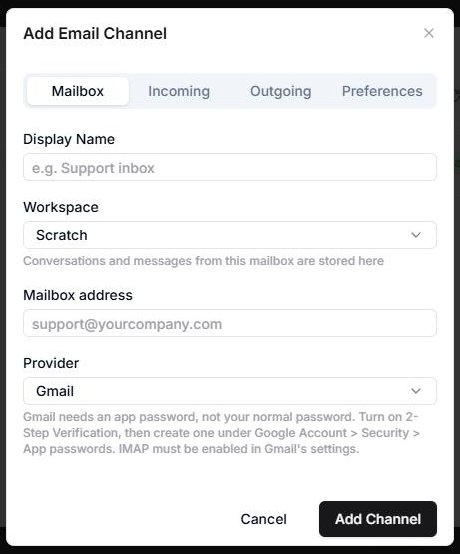
| Field | What to enter |
|---|---|
| Display Name | A name your team will recognize, such as Support inbox. It identifies the mailbox in the Mail screen and on every conversation. |
| Workspace | The workspace where conversations and messages from this mailbox are stored. You can't change it after the channel is created. |
| Mailbox address | The email address, such as support@yourcompany.com. |
| Provider | Gmail fills in Google's servers for you. Other (IMAP) lets you enter your own. |
Incoming tab
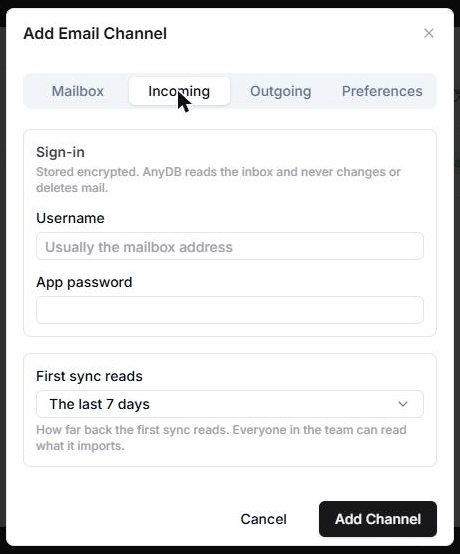
-
For Gmail, there are no server fields. Enter the Username (the full Gmail address) and the App password from step 1.
-
For other providers, under IMAP server enter the server name, the Port, and the Connection security: TLS (usually port 993) or STARTTLS (usually port 143). Then enter the Username, which is usually the mailbox address, and the Password.
-
First sync reads decides how much existing mail AnyDB imports the first time it connects:
- New mail only imports nothing that is already in the Inbox.
- The last 7 days, The last 30 days or The last 90 days also imports older mail from that period. The last 7 days is preselected in the form.
This can't be changed after the first sync. Everyone in the team can read what it imports, so choose carefully.
The sign-in is stored encrypted, and AnyDB never shows it again.
Outgoing tab
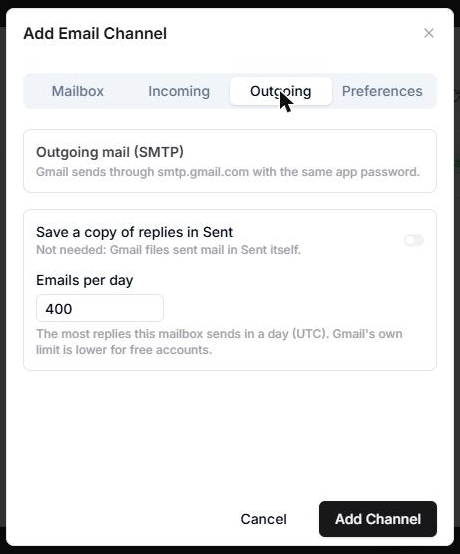
Outgoing mail is what lets your team reply from AnyDB.
- For Gmail, nothing to enter. AnyDB sends through
smtp.gmail.comwith the same app password. - For other providers, enter the SMTP server, then its Port and Connection security (TLS, usually port 465, or STARTTLS, usually port 587). AnyDB signs in to it with the same username and password as the incoming server. Leave the server empty if the mailbox should only receive mail. Replies are then switched off for it.
- Save a copy of replies in Sent adds each reply to the mailbox's Sent folder, so it also shows in your normal mail client. It's on by default. It's not available for Gmail, because Gmail files sent mail in Sent by itself.
- Emails per day is the most replies this mailbox sends in a day (UTC). The default is 400. See Daily send limit.
Preferences tab
Preferences has three groups.
General
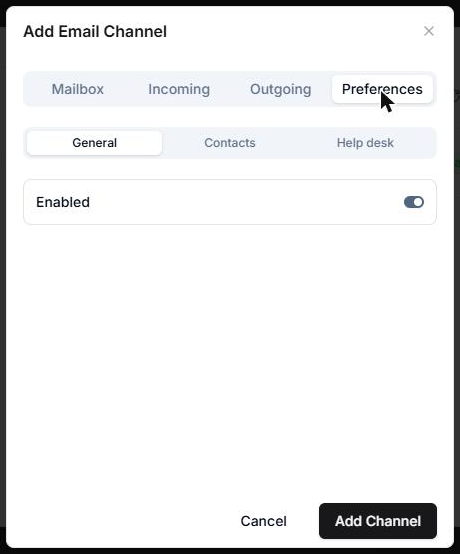
- Enabled is on by default. Turn it off to pause the mailbox. See Pause, reconnect or delete a mailbox.
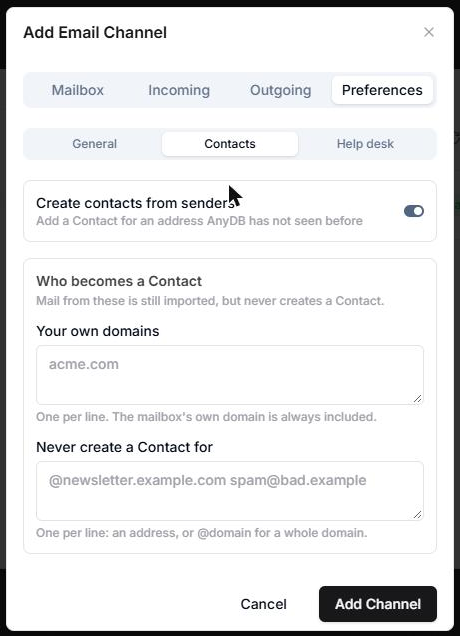
Contacts decides who gets a Contact record. See Contacts for how matching works.
| Setting | What it does |
|---|---|
| Create contacts from senders | On by default. When someone AnyDB has never seen emails you, AnyDB adds a Contact for them and links it to the conversation. |
| Your own domains | One per line, such as acme.com. Mail from these domains is still imported, but never creates a Contact. The mailbox's own domain is always included. |
| Never create a Contact for | One per line: an address, or @domain for a whole domain, such as @newsletter.example.com. Mail from these is still imported, but never creates a Contact. |
Help desk is the switch that makes this a help desk mailbox. Leave Use this mailbox as a help desk off for a normal inbox.
You decide whether a mailbox is a help desk when you add it. You can't turn it on or off afterwards. If you aren't sure, add a normal inbox first to try it out. You can add a second mailbox for the same address later.
Test and save
Select Test connection at the bottom of the form before you save. AnyDB signs in to the incoming server and, if outgoing mail is set up, to the outgoing server too.
- A success message means both work.
- A failure shows the server's reason. See Troubleshooting.
Select Add Channel. The mailbox appears on the Communications page with a Not synced yet badge until its first sync, which starts within a few minutes.
3. Open the Mail screen
Your team reads and answers mail on the workspace's Communications page, on its Mail tab. Open the workspace you chose in the Workspace field. The Mail tab shows a count of unread conversations. If the workspace has more than one mailbox, an account picker at the top of the list switches between them.
The list on the left shows conversations, newest first. Each row shows:
- A dot, and bold text, if the conversation has unread mail.
- The sender of the latest message, and how long ago it arrived.
- The subject and a one-line preview.
- The conversation's Status and who it is Assigned To.
Select a row to open the conversation on the right. On a narrow screen the conversation fills the screen, and the back arrow returns to the list.
Filter and search
Above the list, three tabs narrow it down:
| Tab | Shows |
|---|---|
| All | Every conversation in the mailbox. |
| Unread | Conversations with mail nobody has opened yet. The tab shows how many there are. |
| Assigned to me | Conversations assigned to you. |
The Search mail box finds conversations by their subject and the text of the messages in them. If many messages match, a note says AnyDB is showing the best matches. Add more words to narrow it down.
How new mail arrives
AnyDB checks the mailbox about every 10 minutes. The bar above the list shows when it last synced. To check straight away, select Sync now. Anyone who can see the mailbox can use it, though it won't run again within a minute of the last sync.
The badge on the Communications page tells you how a mailbox is doing:
| Badge | Meaning |
|---|---|
| Not synced yet | The first sync hasn't run. |
| Syncing | Working normally. |
| Sync problems | Six or more checks in a row have failed, so new mail may be missing. The reason is shown on the Mail screen and in the channel's settings. AnyDB keeps trying. |
| Needs reconnecting | The mailbox rejected the sign-in. Syncing has stopped. See Reconnect a mailbox. |
Only the Inbox folder is read. Mail in other folders, such as a label or folder you filter into, isn't imported.
How email is stored
Conversations
- One conversation per email thread. A new email that isn't a reply to anything starts a new Conversation. Replies join the conversation of the email they answer, whoever sent them, including your own replies sent from AnyDB. If the mail program recorded which email a message answers, AnyDB follows that. Gmail's own thread information is used too.
- Subjects never merge threads. Two emails with the same subject but no reply link between them become two conversations.
- One message record per email. Each email becomes a Message attached to its conversation, with Direction
Inbound. - The conversation's Subject is the subject of the first email. You can edit it.
- New conversations start with Status
Open. AnyDB never changes the status for you in a normal inbox, so aClosedconversation stays closed when the customer writes again. It becomes unread, though. Use the Unread tab to spot it.
On top of the standard fields, email conversations also carry Unread, a Last Message Preview and a Last Sender, which the Mail screen uses. Email messages also carry Cc, Subject and a Body Preview. The Window Expires At field is not used for email, because email has no 24-hour reply window.
What each part of an email looks like
| In the email | In AnyDB |
|---|---|
| Sender, recipients and Cc | From, From Name, To and Cc on the message. |
| Text and formatting | Body, as cleaned-up HTML. Quoted earlier replies are collapsed. |
| Attachments | Attachments on the message. See Attachments. |
| Images in the body | Small inline images are shown in place. Larger ones are attachments. Images hosted on the web are hidden until you select Show images, so senders can't tell when you open a message. |
| Delivery failure notices (bounces) | Added to the conversation, and the message that failed is marked Failed. See Replies. |
For safety, AnyDB removes scripts, forms and other active content from message bodies before it stores them.
Attachments
Files attached to an email are saved with the message, and you can open and download them like any other AnyDB file.
- Each file is limited to 25 MB.
- A whole email over 25 MB is still imported, but only its headers and text. Delivery Detail notes that the rest was left out.
- Very long message bodies are shortened to their text, and the full message is attached as a file.
- Attachments count toward your team's file storage.
Message fields for email
| Field | What it holds |
|---|---|
| Direction | Inbound (from the customer) or Outbound (a reply from AnyDB). |
| From, From Name, To, Cc | The addresses and the sender's display name. |
| Subject | The email's subject. |
| Body, Body Preview | The message, and its first lines as plain text. |
| Sent At | When the email was sent. |
| Delivery Status | Received for inbound mail. For replies: Queued, Sent or Failed. Email has no Delivered or Read status. |
| Delivery Detail | Why a reply failed, or a note that part of a message was left out. |
Reading, unread and assigning
- Opening a conversation marks it as read. Anyone who can see the conversation can do this, even with read-only access. Select Mark unread at the top of the conversation to flag it again. The unread flag is shared by the whole team, not kept per person.
- Assign at the top of the conversation sets Assigned To. You can assign to one or more teammates or groups. Use the Assign control on the Mail screen, not the assign control in a record's normal header. Only the Mail screen's control fills in the field that Assigned to me looks at.
- Status at the top of the conversation sets
Open,Pending,SnoozedorClosed.
Changing the assignee or status needs permission to edit the conversation.
Contacts
When mail from an address arrives for the first time, AnyDB tries to link the conversation to the sender's Contact record, through Related Record:
- AnyDB looks for a Contact in the workspace whose Email field holds the sender's address. The match is exact and ignores capital letters in the incoming address, so a Contact saved as
Alice@Acme.comis only found if the incoming address is in that exact form or in lowercase. Store Contact emails in lowercase to be safe. - If exactly one Contact matches, it's linked. If more than one matches, AnyDB doesn't guess and links none.
- If none matches and Create contacts from senders is on, AnyDB creates a Contact and links it. It splits the sender's display name into First Name and Last Name, and saves their address in Email. A name like
Smith, Maryis read as last name first.
AnyDB doesn't create a Contact for:
- Automated mail: mailing lists, newsletters, bulk mail, auto-replies, and Gmail's Promotions category.
- Senders like
no-reply@,donotreply@,mailer-daemon@,postmaster@andbounce@. - Your own domains, and anything on your blocklist (see Preferences).
The mail is still imported, and an existing Contact is still linked. Contacts are only created if the workspace has the Contact type.
Linking happens when a conversation is created. If the first email came from an automated sender, AnyDB tries again when a person replies in the same thread. You can change Related Record by hand at any time.
Replying
Open a conversation to read its emails, oldest first, as a thread. Below the thread are Reply and Reply all.
- Reply goes to the sender of the email you're answering. If that email asked for replies to go to a different address (a Reply-To), AnyDB follows it.
- Reply all also includes the other people on the email. It's hidden when it would add nobody.
- AnyDB never includes the mailbox itself as a recipient.
Reply answers the newest incoming email in the conversation. The recipients and the subject, which is the original subject with Re: in front, are shown above the editor. You can't change them.
The composer has bold, italic, underline, links and lists. Two more controls:
- Include the original message adds the email you're answering below your reply, as a quote. It's on by default.
- Attach adds files. All attachments on one reply can total up to 18 MB.
Select Send. Your reply appears in the thread straight away with Sending…, and AnyDB sends it in the background. Discard closes the composer without sending.
To reply, you need permission to edit the conversation. Without it the Reply buttons are hidden. They're disabled, with an explanation, if the mailbox is paused or has no outgoing mail set up.
Replies are sent from the mailbox's own address and are threaded properly, so the customer's mail program shows them as part of the same conversation. When the customer answers, their email joins the same conversation in AnyDB.
Delivery status
| Status | Meaning |
|---|---|
Queued | Saved in AnyDB and waiting to be sent. The thread shows Sending…. |
Sent | Accepted by your mail provider's server. Email has no read or delivered receipts. |
Failed | Not sent, or later reported undeliverable. The thread shows This message was not delivered with the reason. |
A reply is marked Failed right away if the outgoing server refuses it. It can also be marked Failed later, if the recipient's server sends back a delivery failure notice (a bounce), for example because the address doesn't exist. AnyDB reads the notice, shows the reason on the original reply, and adds the notice to the conversation. A "delayed" warning isn't treated as a failure.
If AnyDB loses the connection to your mail server while it's sending the message itself, it doesn't send it again, because the message may already have been delivered. The Failed reason says so. Check your Sent folder or ask the customer before you retry.
For temporary problems, such as a server that is busy, AnyDB tries up to three times by itself before it gives up.
To resend a failed reply, select Retry on it. The reply goes out again with the same message identity, so the customer's mail program doesn't treat it as a different email. A retry counts toward the daily limit.
Daily send limit
Emails per day limits how many replies a mailbox sends per day (UTC). It exists to protect your mailbox from being flagged by your provider. The default is 400, and you can set anything from 1 to 100,000. Once it's reached, AnyDB refuses new replies until the next day. Incoming mail isn't affected.
Your mail provider has its own limits too. Gmail's are lower for free accounts. If your provider's limit is lower than yours, set this to match it.
Automating email
Workflows can react to new email. Use the When a record is created trigger on the Message type to run for every email, or on Conversation to run once per new thread. For example:
- Assign every new conversation to a support group.
- Create a task or a lead from a new thread.
- Notify a teammate when a message's Subject or Body contains certain words.
To act only on customer mail, add a condition that Direction is Inbound.
The Send a message workflow action is for WhatsApp. It refuses email conversations, so replies to email are sent by people from the Mail screen.
Change a mailbox
Open Manage Team → Communications, then select the mailbox in the list. The Edit Email Channel dialog title shows the mailbox's sync status and when it last synced, and any error from the last sync.
Pause, reconnect or delete a mailbox
- To pause a mailbox, turn off Enabled on the Preferences → General tab and save. While paused, AnyDB doesn't check the mailbox or send replies. Mail that arrives in the meantime is imported when you turn it back on, because it stays in your Inbox.
- To remove a mailbox, open the … menu in the list and select Delete. The conversations and messages it created stay in your workspace.
Reconnect a mailbox
If the mailbox rejects AnyDB's sign-in, for example because the password changed or the app password was revoked, the badge turns to Needs reconnecting and syncing stops. AnyDB emails whoever added the channel to let them know. Members who aren't team owners see The mailbox needs to be reconnected. Ask a team owner to update its credentials. on the Mail screen.
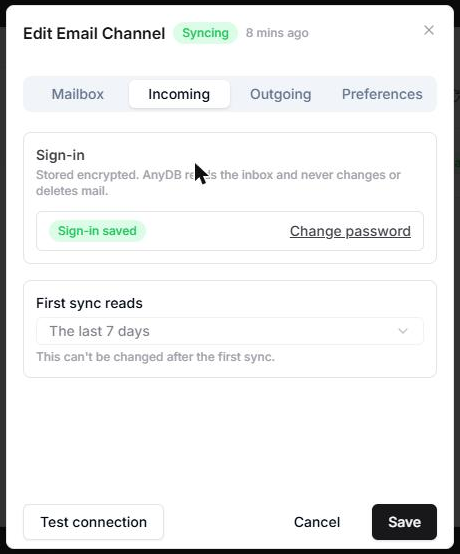
To fix it, a team owner opens the mailbox, selects Change password on the Incoming tab, enters the new password, and saves. Saving a new password clears Needs reconnecting and syncing resumes.
Change servers or sign in as a different mailbox
Changing the Username or the IMAP server points the channel at a different mailbox, so AnyDB reads the new mailbox from the start, as if it were a first sync. Conversations already in AnyDB stay. Create a new channel instead if you want to keep the two mailboxes separate.
You can't change the Workspace, the First sync reads setting after the first sync, or whether the mailbox is a help desk.
Troubleshooting
| What you see | Likely cause and fix |
|---|---|
| Test connection says the sign-in failed | The username or password is wrong. For Gmail, use an app password, not your Google password, and check that IMAP is enabled in Gmail's settings. |
| Test connection says it could not reach the server | The server name or port is wrong, the server isn't reachable from the internet, or it doesn't use TLS or STARTTLS. Check the ports: 993 or 143 for incoming, 465 or 587 for outgoing. |
| Test connection passes for incoming mail but fails for outgoing mail | The SMTP server, port or connection security is wrong, or your provider requires a different password for sending. Check the Outgoing tab. |
| You can't find App passwords in your Google account | 2-Step Verification is off, or your Google Workspace administrator has turned app passwords off. |
| The mailbox shows Needs reconnecting | The password changed or was revoked. See Reconnect a mailbox. |
| The mailbox shows Sync problems | Your mail server is slow, unreachable or limiting AnyDB, which Gmail does if it logs in too often. The reason is shown on the Mail screen. It clears by itself after a successful check. |
| Old mail isn't in AnyDB | First sync reads was set to New mail only, or the mail is in a folder other than the Inbox. The setting can't be changed after the first sync. To read the history, add the mailbox again as a new channel with a longer period. |
| New mail is missing | New mail can take up to 10 minutes. Select Sync now. Also check that the mail wasn't filtered out of the Inbox into another folder. |
| A few messages show in the sync error as could not be read and were skipped | AnyDB tried five times to import them and gave up, so one broken message can't block the rest of the mailbox. The others keep syncing. |
| A Contact wasn't created or linked | Check Create contacts from senders, that the sender isn't automated or on a blocklist, and that the workspace has the Contact type. See Contacts. |
| Replies you send from your mail program aren't in AnyDB | AnyDB only reads the Inbox, so replies sent from outside AnyDB aren't imported. Reply from AnyDB so the whole thread is in one place. |
| Reply is disabled | The mailbox is paused, or it has no outgoing mail (SMTP) set up. Open the Outgoing tab. |
| A reply shows This message was not delivered | The reason is shown under the message. Common causes: a mistyped address, your provider's daily limit, or the daily limit set in AnyDB. Fix the cause and select Retry. |
Current limitations
- Sign-in is by password only. Gmail needs an app password, and Microsoft 365 isn't supported yet. One-click sign-in for Gmail and Microsoft 365 is planned.
- Inbox only. AnyDB reads one folder, and doesn't import replies you send from a mail program.
- Not instant. New mail appears within about 10 minutes, or straight away with Sync now.
- No new emails from AnyDB. You can reply to a customer's email, but you can't start a new conversation or forward an email from the Mail screen.
- Replies only to the newest email. Reply and Reply all answer the newest incoming email in a conversation, and you can't edit the recipients.
- Contacts are matched on the exact address, ignoring capitals only in the incoming address. See Contacts.
- Closed conversations don't reopen automatically in a normal inbox. In help desk mode, a customer reply can reopen a ticket.