Reports
Reports turn records in a workspace into saved, reusable summaries and charts. Choose a record Type, select the fields you want to display, group the results, add calculations, apply a filter, and run the Report whenever you need an updated snapshot.

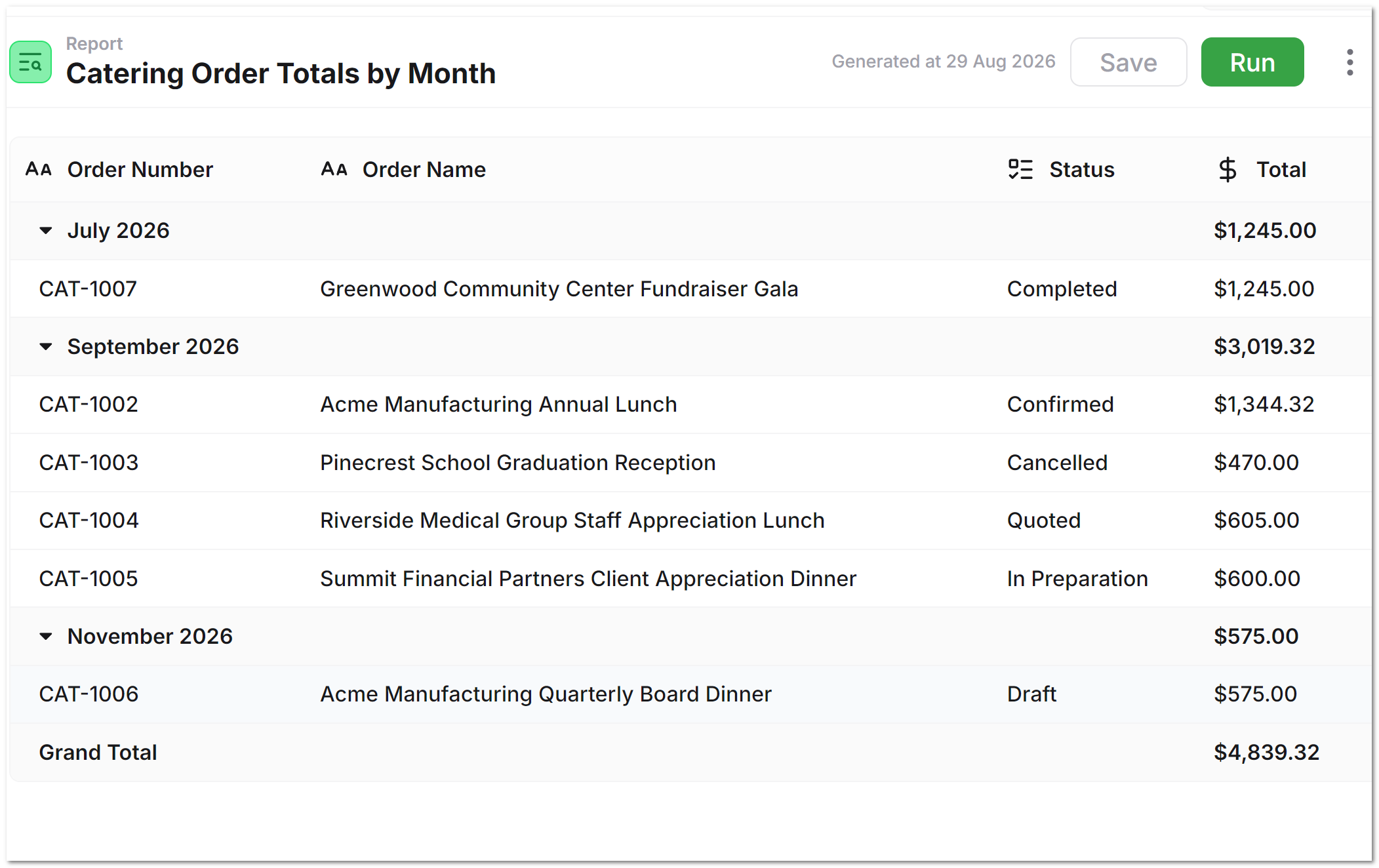
Reports are useful for questions such as:
- How much revenue is associated with each Customer?
- How many open Tasks belong to each Project or assignee?
- Which orders are in each fulfillment Status?
- What are the totals for each department, location, or reporting period?
- How are sales, costs, or other numeric values distributed across groups?
- Which Invoices, Tasks, or Contacts belong to each Service Provider? See Include related records.
Before you start
The Reports workspace tab appears when:
- Reports are included for your account
- You have administrator access to the workspace
If you do not see Reports in the workspace mode switcher, ask a team or workspace administrator to confirm your access and available features.
Open Reports
- Open the workspace containing the records you want to analyze.
- Click Reports in the workspace mode switcher at the top of the page.
The Reports page lists the saved Reports in that workspace as rows. Each row shows the Report name and, after it has been configured, its selected Record Type. A search box above the list filters Reports by name, Record Type, or folder. See Organize Reports in folders to group a long list.
Create a Report
- Open Reports.
- Click New Report.
- Enter a name of at least two characters.
- Optionally, enter a Folder such as
Finance/Monthlyto file the Report as soon as it is created. See Organize Reports in folders. - Click Create.
The new Report opens in the Report editor. You can click its name at the top of the editor to rename it.
Organize Reports in folders
A workspace can hold many Reports. Folders group them so a long list stays easy to scan, and you can file Reports into them by dragging and dropping. A folder is a label on each Report, not a separate record, so filing a Report in a folder never changes who can see, run, or edit it.
When at least one Report is in a folder, the Reports page shows two areas:
- The folder tree at the top. Each folder shows how many Reports it contains, including Reports in its subfolders. Click a folder's name to collapse or expand it.
- The Unfiled box below the tree. It holds every Report that is not in a folder, in a box of fixed height that scrolls. The tree scrolls on its own too, so the Unfiled box stays in view however many folders you have.
Until you file a first Report, the page shows a plain list.
Create folders and subfolders
A folder exists as long as at least one Report is filed in it. To create one, file a Report under a new name; there is no separate "new folder" button.
Write / between names to nest folders. For example, Finance/Monthly is a Monthly folder inside Finance, and Finance appears in the tree automatically.
| Rule | Limit |
|---|---|
| Depth | Up to 5 levels |
| Length of each folder name | Up to 60 characters |
| Characters | Any, except control characters |
Extra spaces and empty segments are removed, so Finance / Monthly/ is saved as Finance/Monthly. Folder names are matched exactly as written, so Finance and finance are different folders.
Move a Report to a folder
You can file a Report in any of three ways:
- Drag and drop it. Use the grip handle on the left of the row. See Drag and drop below.
- Use the menu. Point to the Report's row, open the settings menu, and select Move to folder…. Type a folder path, or choose an existing one from the suggestions, then click Move. Leave the field empty to take the Report out of its folder.
- File it on creation. Enter a Folder in the New Report dialog.
A confirmation appears after each move. You need permission to edit the Report to move it.
Drag and drop
Every Report row has a grip handle (a column of dots) on its left. Drag the handle and drop it on:
- A folder name to file the Report in that folder. This works for any folder in the tree, including one you have collapsed and any subfolder.
- The Unfiled box to take the Report out of its folder. You can drop anywhere inside the box, not only on its title.
While you drag, AnyDB shows where the Report can go:
- Every folder it can be dropped on gets a light dashed outline.
- The folder the Report came from is not outlined, because dropping it back there changes nothing. The same goes for the Unfiled box when you drag an unfiled Report.
- The folder or box under the pointer is highlighted more strongly, so you can see where it will land before you let go.
The Report is filed as soon as you drop it, and a message confirms where it went. If you drop it on the folder it is already in, or anywhere that is not a folder or the Unfiled box, nothing changes.
A few things to know:
- Only the grip handle starts a drag. Clicking the row itself still opens the Report.
- You can drag a Report out of the scrolling Unfiled box onto any folder you can see in the tree. A folder that is scrolled out of view cannot be a drop target, so scroll the tree first.
- Dragging cannot create a new folder, since a folder has to exist before you can drop onto it. To start a first folder, or a new subfolder, use Move to folder… or the Folder field when you create a Report.
- You need permission to edit the Report. If AnyDB cannot move it, it tells you that the Report could not be moved, and the Report stays where it was.
Rename a folder
Point to a folder in the tree, open its … menu, and select Rename folder…. Enter the new path and click Rename.
Renaming a folder renames its subfolders with it: renaming Finance to Accounting also turns Finance/Monthly into Accounting/Monthly. Reports you do not have permission to edit stay in the old folder, and AnyDB tells you how many could not be moved.
To remove a folder, move its Reports elsewhere or into Unfiled. A folder with no Reports disappears.
Find a Report
The search box above the tree filters the Reports by name, Record Type, or folder path. While you search, folders that contain a match stay open, and folders with no match are hidden. Clear the box to return to the full tree.
Configure the Report
The right panel contains Report and Filters tabs.
1. Choose the Record Type
On the Report tab, click Record Type, then select the Type whose records you want to analyze.
Changing the Record Type clears the previously selected Columns and Group By fields because the available fields belong to the selected Type.
2. Add Columns
Under Columns, click Add Field and select each field that should appear in the results.
- Add at least one field before running the Report.
- Drag selected fields to change the column order.
- Open a selected field's three-dot menu to configure it or remove it.
- Use the field search when the Type contains many fields.
Add an aggregation
An aggregation calculates a summary value for each group. Open a selected Column's three-dot menu, select Aggregation, and choose an operation:
| Aggregation | Available for | Result |
|---|---|---|
| Sum | Number, Currency, and Percentage fields | Adds the values |
| Avg | Number, Currency, and Percentage fields | Calculates the average |
| Min | Number, Currency, and Percentage fields | Shows the lowest value |
| Max | Number, Currency, and Percentage fields | Shows the highest value |
| Count | Any field | Counts records where that field has a value |
The selected operation appears on the Column. Choose Clear from the same menu to remove it.
A Column without an aggregation can still appear in detail rows, but it does not calculate a group subtotal, Grand Total, or chart value.
3. Group the records
Under Group By, click Add Field and select the fields that should organize the result rows.
For example, grouping Invoice records by Customer and then Status creates groups based on those field values. Drag Group By fields to change their order.
For a Date or Date/Time field, open its three-dot menu and select Date Interval to group records by Day, Week, Month, Quarter, or Year. Choose Clear to return to the field's original value.
Group By determines how the results are divided and where numeric subtotals appear. Columns determine what information is displayed for each matching record.
4. Filter the records
Open the Filters tab and enter a Search Query to limit which records are included.
Examples:
Status:Open
Status:Open AND Total:>500
"Customer Name":"Northwind Events"
Use quotes around field names or values containing spaces. Reports use the same query syntax as workspace search; see Search in AnyDB for operators and additional examples.
5. Choose how to display the Report
On the Report tab, use Options to control the results:
- Display — choose Charts, Listing, or Charts and Listing.
- Grand Total — show or hide a final total across all groups. Add an aggregation to at least one Column before enabling this option.
- Detail Rows — when enabled, group rows can expand to show the individual matching records. Disable it for a compact, summary-only listing.
These settings affect the saved Report and its generated results. With Detail Rows disabled, the listing shows each group and its aggregated values without loading the underlying record rows.
6. Add charts
Choose Charts or Charts and Listing under Display to show the Charts section, then:
- Add a numeric, Currency, or Percentage Column and assign it an aggregation.
- Add at least one Group By field. Each group becomes a category in the chart.
- Click Add Chart.
- Enter a Label.
- Choose Bar, Pie, or Line under Format.
- Under Values, select the numeric Column to visualize.
You can add multiple charts, drag them into a different order, or remove a chart with its X. Each chart uses the selected Column's aggregation for every group—for example, the Sum of Total by Customer.
Include related records
A Report normally has one row for each record of its Record Type. Related Records changes that: for each record that matches, the Report lists the records connected to it, with one row for each related record. You can then group those rows by their type, so one Report answers questions such as "which Invoices, Tasks, and Contacts does each Service Provider have?"
These are the same three connections that appear under Connected Records in a record's side panel.
Add related records
- On the Report tab, find Related Records (below Group By) and click Add Related Records.
- Choose the connection from the first list: Children, Connected to, or Referenced by.
- Optionally, choose a Type. Leave it on Any type to include related records of every type.
- If you chose a Type, click Add Field under Fields and pick the fields of that Type to show as columns.
- Add another entry for each further connection or Type you want, then Save and Run.
You can add the same connection more than once, for example Referenced by limited to Invoices and Referenced by limited to Contacts, and you can use all three connections in one Report. Remove an entry with its X. A related record that matches two entries appears once for that connection.
What each connection lists
| Connection | Lists |
|---|---|
| Children | The records attached directly under the matching record |
| Connected to | Records connected through formulas or lookups that read the matching record |
| Referenced by | Records that point at the matching record with a Reference field |
A record that simply points at another record through a Reference field appears under Referenced by on the record it points at. It is not a Connected to record.
What the rows show
Every row in a Report with related records has these columns, whether or not you add anything under Columns:
| Column | Shows |
|---|---|
| Source | The matching record the row belongs to |
| Source ID | That record's ID |
| Relation | Children, Connected to, or Referenced by |
| Related Type | The related record's Type |
| Related Record | The related record's name |
| Related ID | The related record's ID |
Without a Type on an entry, the row shows these columns only. With a Type, the fields you picked are added as further columns; a related record of another Type leaves those columns empty.
Clicking a row opens the related record, not the matching record.
Group the related rows
Under Group By, Add Field also offers these columns. Group by Relation and then Related Type to see, for example, a Children, Task group, a Children, Note group, and a Referenced by, Invoice group. Add Source first if you want the groups divided by matching record.
Who sees what
The Report shows only records the person running it can read. A matching record they cannot read adds no rows, and a related record they cannot read is left out and not counted, so two people can see different rows from the same Report.
Limits and behavior
- A Report with related records lists up to 10,000 related rows. Rows beyond that are left out.
- A record with more than 10,000 references cannot be listed in full.
- Connected to reads the record's stored connections, which update shortly after a record is saved. Run the Report again if a very recent change is missing.
- Columns lists the fields of the Report's own Record Type. Those fields are not filled in on related rows, which carry the columns above and the fields you chose on each entry. Because aggregations (Sum, Avg, Min, Max, Count) are set on Columns, the editor cannot aggregate a related Type's fields. A Report defined through the API or AnyDB MCP can aggregate them with
metrics. - A record related to more than one matching record appears once for each. When a Report aggregates a field, that record counts in each group's subtotal but only once in the Grand Total.
- CSV and XLSX exports include the same columns as the screen.
Example: Invoices and Tasks for each Service Provider
- Create a Report named Provider Related Records with Service Provider as the Record Type.
- Under Related Records, click Add Related Records and keep Children.
- Add another entry, choose Referenced by, set Type to Invoice, and add the Amount field.
- Under Group By, add Relation and then Related Type.
- Click Save, then Run.
The listing shows a Children, Task group with each Task, a Referenced by, Invoice group with each Invoice and its Amount, and so on, each row naming its Source Service Provider.
Save and run
Save and Run perform different actions:
| Action | What it does |
|---|---|
| Save | Saves the Report name, Record Type, Columns, aggregations, Group By fields, Related Records, filter, display options, and charts without refreshing the results |
| Run | Generates a new result snapshot using the current saved definition |
The Report does not update automatically when its source records change. Click Run whenever you need refreshed results.
When you run a new Report, AnyDB saves its definition before starting. If you change a previously saved Report and click Run, the Unsaved Changes dialog asks whether to Save and Run. Choosing Don't Save cancels the run.
While AnyDB generates the results, the editor displays progress. When generation finishes, the header shows the date the Report was generated.
Read the results
Depending on the selected Display option, results appear as charts, a grouped listing, or both.
- A group row shows the selected Sum, Avg, Min, Max, or Count for each aggregated Column.
- When Detail Rows is enabled, click a group row to collapse or expand its records, then click a detail row to open the underlying record in Quick View.
- When Detail Rows is disabled, the listing shows only summarized group rows.
- A Grand Total row appears when Grand Total is enabled and the Report contains at least one aggregation.
- Charts show one aggregated value for each group. Point to a bar, line point, or pie segment to see its value.
- Click Load More to retrieve additional groups or records in a large group.
- No data found means no records matched the selected Type and filter.
The results are a saved snapshot from the most recent run. Editing an underlying record does not change that snapshot until the Report runs again.
Export results or move Reports
After a Report has generated results:
- Open the three-dot menu in the Report header.
- Select Export as CSV or Export as XLSX.
The downloaded file contains the generated Report snapshot, including its grouped detail and summary rows.
To move or back up saved Reports, use a Report archive instead:
- From an open Report's three-dot menu, select Export to download that Report as an importable archive.
- From the main Reports page's three-dot menu, select Export all reports to download all Reports in the workspace as a ZIP file.
- From the same main-page menu, select Import report(s) and upload a previously exported Report archive.
Archive export preserves the Report definition and its generated snapshot. CSV and XLSX are intended for working with the result data outside AnyDB.
Rename or delete a Report
Rename
- Open the Report.
- Click its name in the header.
- Enter the new name.
- Click Save.
Delete
You can delete a Report from either location:
- Point to its row on the Reports page, open the settings menu, and select Delete Report.
- Open the Report, use the three-dot menu, and select Delete Report.
Confirm the Report name in the deletion dialog. Deleting a Report also removes its generated result data and cannot be undone from the Reports interface.
Example: Open order totals by Customer
To summarize the value of open Sales Orders:
- Create a Report named Open Order Totals by Customer.
- Select Sales Order as the Record Type.
- Add Customer, Status, Order Date, and Total as Columns.
- Open the Total Column's three-dot menu and select Aggregation > Sum.
- Add Customer and then Status under Group By.
- Keep Charts and Listing selected under Display.
- Click Add Chart, name it Open Order Value, choose Bar, and select Total under Values.
- On the Filters tab, enter
Status:Open. - Click Run.
The listing groups open orders by Customer and Status, displays the summed Total for each group, and includes a Grand Total. The chart visualizes those same grouped totals.
Reports, Report Cells, and charts
AnyDB has several related reporting features:
| Feature | Use it when |
|---|---|
| Saved Reports | You want a workspace-level, reusable listing or chart that groups records, calculates aggregations, optionally shows detail rows, and exports results |
| Report Cell | You want a count, total, grouped value, or chart embedded inside an individual record |
| Chart Cell | You already have chart-ready values and want to visualize them inside a record |
| REPORT() function | You want to calculate a reporting value directly in a formula |
These features are independent. Creating a saved Report does not add a Report Cell or chart to a record.
Troubleshooting
| Problem | What to check |
|---|---|
| Reports is missing from the workspace mode switcher | Confirm that Reports are available for the account and that you have workspace administrator access. |
| Save or Run is unavailable | Select a Record Type. Also add the fields needed for a useful result. |
| The Report returns no data | Check the Record Type and remove or simplify the Search Query. Then run the Report again. |
| Group totals do not appear | Open the Column's three-dot menu and assign an Aggregation. Sum, Avg, Min, and Max require a Number, Currency, or Percentage field; Count works with any field. |
| Grand Total does not appear | Assign an Aggregation to at least one Column and enable Grand Total under Options. Then save and run the Report again. |
| A chart is empty or shows zero values | Add a Group By field, assign an Aggregation to the selected numeric Column, confirm that the chart uses that Column under Values, then save and run again. |
| Detail records are missing | Enable Detail Rows, save the Report, and run it again. |
| Results do not reflect recent record changes | Click Run to generate a new snapshot. |
| A field is missing from Columns or Group By | Confirm that you selected the correct Record Type. |
| A Report with Related Records has no rows | The matching records may have no related records of that connection or Type, or you may not have permission to read them. Remove the Type to include every Type, or check the record's Connected Records panel. |
| A record is missing under Connected to | Connected to lists records connected through formulas or lookups. A record that points at it with a Reference field appears under Referenced by instead. |
| A related Type's field is empty | Fields are filled only for related records of the Type chosen on that entry. Check the entry's Type and run the Report again. |
| A Report will not move to a folder | You need permission to edit that Report. Check that the folder path is no deeper than 5 levels and that no folder name is longer than 60 characters. |
| A folder has disappeared | A folder exists only while a Report is filed in it. If you moved or deleted its last Report, the folder is gone; file a Report under the same path to bring it back. |
| Dragging a Report does nothing | Drag from the grip handle on the left of the row, not from the name. Drop it on a folder name or on the Unfiled box. |
| There is no Unfiled box | The box appears once at least one Report is in a folder. Until then, all Reports show in a single list. |